Image Editor
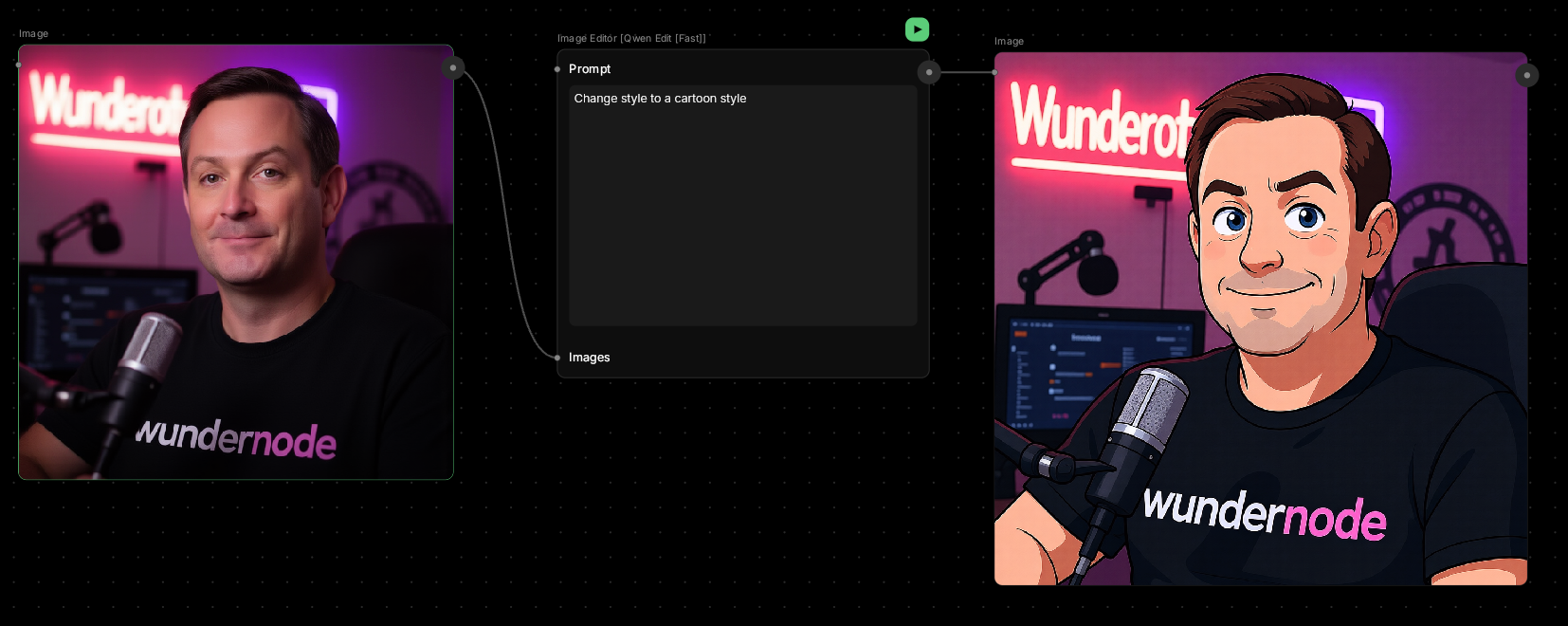
Change what’s already there without starting over.This node lets you adjust lighting, swap elements, blend multiple images, or remix existing visuals — all with words instead of masks.
🪄 When to Use It
Use Image Editor when you have something good but need to tweak it. It works great for:- Lighting adjustments — “make it golden hour” or “add dramatic shadows”
- Element swaps — “change the background to a forest”
- Image blending — combine multiple photos into one composition
- Style shifts — “make it more painterly” or “cinematic night scene”
Average time: 5–12 seconds per edit
Cost: Medium
🎚️ Controls and Parameters
Prompt (Text, Required)
Describe the change you want to make. Be specific about what to keep and what to change. 💡 Tip: Instead of “make it better,” try “Change the lighting to a cinematic night scene with cool blue tones.”Images (Array, Optional)
Upload 1-3 images to edit or blend together. The AI will interpret your prompt across all of them. 💡 Tip: Use one image for simple edits, multiple images for blending or style transfer.🎨 Available Models
Choose the model that best fits your editing needs:Nano Banana (Default)
Fast, versatile editing for most use cases. Great for lighting adjustments and simple modifications.GPT-Image
Powerful multi-image blending with precise control over batch size, output format, and background transparency.Qwen Edit [Fast]
Quickest option for rapid iterations when you need speed over perfection.Qwen Edit
Balanced quality and speed. Good for most editing tasks with natural results.Qwen Edit [Max]
Highest quality Qwen variant. Best for detailed edits and professional work.Seedream V4
Advanced editing with support for high-resolution outputs and safety filtering.Flux Kontext [Pro]
Premium model for complex multi-image blending with advanced guidance control. 💡 Tip: Start with Nano Banana or Qwen Edit for most edits. Use Qwen Edit [Max] or Flux Kontext [Pro] for final, detailed work.🎨 What to Expect
The editor works best when you give it clear direction.Vague prompts like “improve this” might not give you what you want. Good prompts:
- “Change the background to a misty mountain landscape”
- “Add warm sunset lighting from the left side”
- “Blend these two portraits, keeping the face from the first and the background from the second”
- “Make it better”
- “Fix it”
- “More artistic”
💬 Quick Tips
- Start with one image and simple changes before trying complex blends
- Be specific about what to preserve vs. what to change
- If results aren’t what you want, try rephrasing your prompt
- Multiple images work best when they share similar lighting or composition