Image Input
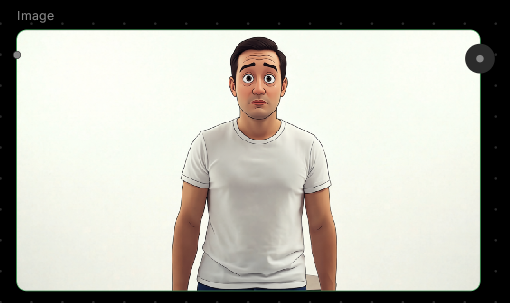
Bring your own visuals.This node lets you upload images from your device and use them anywhere in your workflow — edit them, animate them, or use them as reference for other generations.
🪄 When to Use It
Use Image Input when you want to work with your own photos, artwork, or reference images. It works great for:- Editing existing photos — feed into Image Editor or Upscale nodes
- Animation — turn stills into video with Image to Video
- Reference material — use as control maps or style guides
- Portrait animation — create talking portraits from photos
Cost: Free (no processing)
🎚️ How It Works
Two ways to add images:- Click to upload — Select the node and browse for an image file
- Drag and drop — Drag any image file directly onto the canvas, and an Image Input node is automatically created
🎨 What to Expect
The Image Input node stores your image and makes it available to other nodes. Common uses:- Upload a portrait → Talking Portrait → animate with speech
- Upload a product photo → Image Editor → adjust lighting and background
- Upload a reference image → Text to Image (as control map) → guide composition
- Upload a sketch → Image to Video → bring your drawing to life
💬 Quick Tips
- Drag and drop images directly onto the canvas for instant Image Input nodes
- You can connect one Image Input to multiple nodes to process the same image in different ways
- Higher quality source images produce better results in downstream nodes
- Supported formats: JPG, PNG, WebP, GIF
- No size limit, but larger images may take longer to process in connected nodes