
Talking Portrait
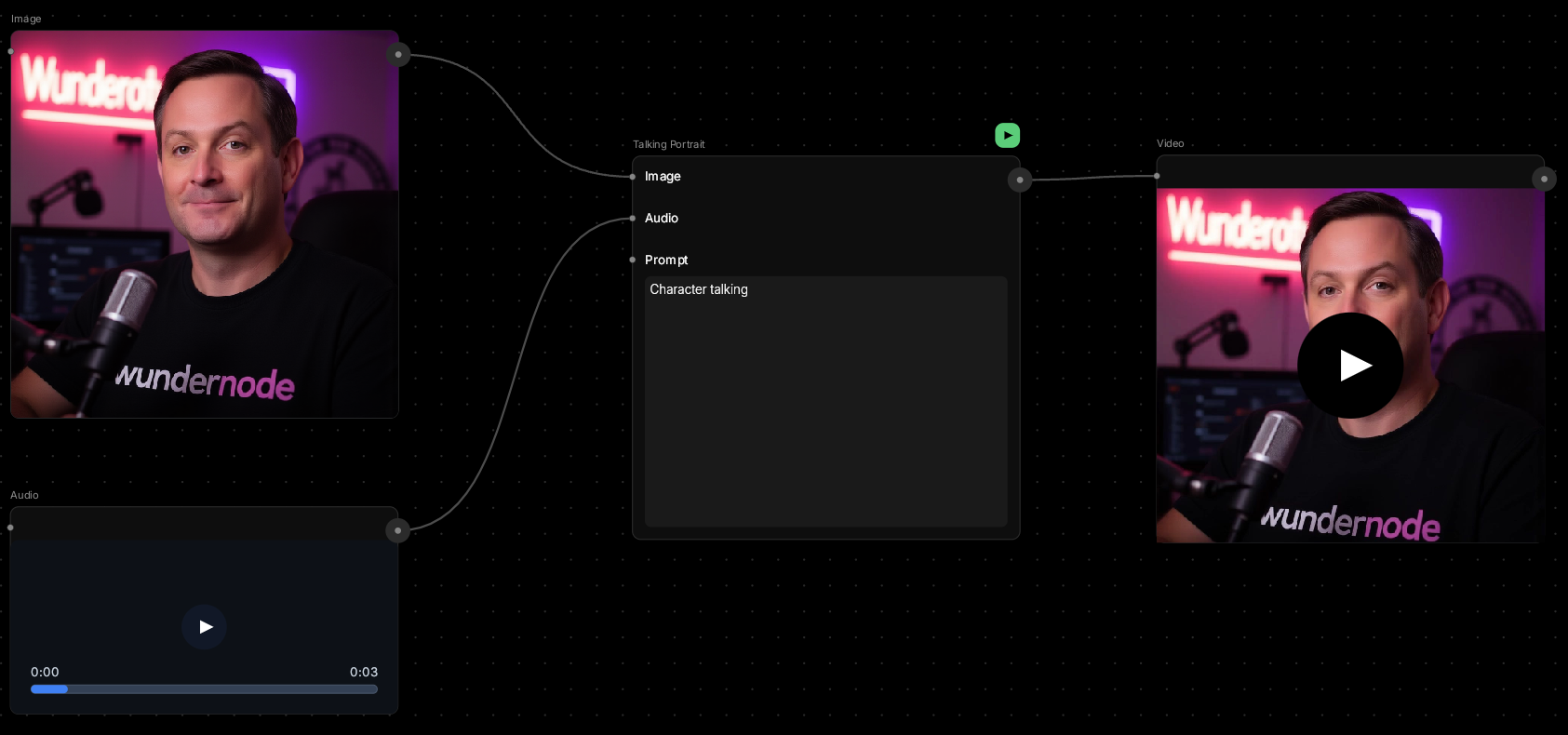
Make any portrait speak.This node takes a still image of a face and syncs it to audio, creating natural lip movement and subtle facial animation. Perfect for bringing characters to life or creating talking avatars.
🪄 When to Use It
Use Talking Portrait when you want to animate a still face with speech. It works great for:- Character dialogue — make your illustrated characters speak
- Avatar creation — animated profile pictures or mascots
- Story narration — portraits that deliver voiceover
- Explainer videos — talking head style without filming
Average time: 30–60 seconds per clip
Cost: Medium-High
🎚️ Controls and Parameters
Image (Image, Required)
A portrait or character image with a visible face. Works best with:- Clear frontal or 3/4 view of the face
- Good lighting on the face
- Minimal motion blur
Audio (Audio, Required)
The speech or dialogue you want the portrait to lip-sync to. Can be:- Generated from Voice Generator node
- Uploaded audio file
- Connected from another audio node
Prompt (Text, Required)
Describe the character and context — helps the AI understand the mood and style. 💡 Tip: “Professional woman speaking confidently to camera” or “Animated character telling a story” sets the tone.Seed (Number)
Control randomness. Same seed + same inputs = same result.Intensity (Slider, 0–1)
How much facial movement to add:- Low (0.3–0.5) — subtle, natural movement
- Medium (0.6–0.8) — noticeable but realistic
- High (0.9–1.0) — expressive, animated style
🎨 Available Models
Infinite Talk (Default)
Advanced lip-sync technology optimized for portrait animation. Produces natural facial movement with accurate lip-sync to audio. Supports:- Variable intensity control
- Seed-based consistency
- Custom prompts for context
🎨 What to Expect
The AI will:- Animate the mouth to match the audio
- Add subtle head movements and eye blinks
- Keep the overall character appearance consistent
- Clear audio — crisp dialogue without background noise
- Forward-facing portraits — frontal or slight angle views
- Well-lit images — shadows on the face can cause issues
- Profile views or extreme angles
- Multiple faces in one image (picks the main face)
- Very stylized or abstract art
💬 Quick Tips
- Generate portraits with Text to Image for most consistent results
- Use Voice Generator to create matching audio clips
- Keep intensity around 0.7-0.9 for natural-looking motion
- Audio length determines video length (longer audio = longer processing)
- Works with illustrated characters, not just realistic portraits