

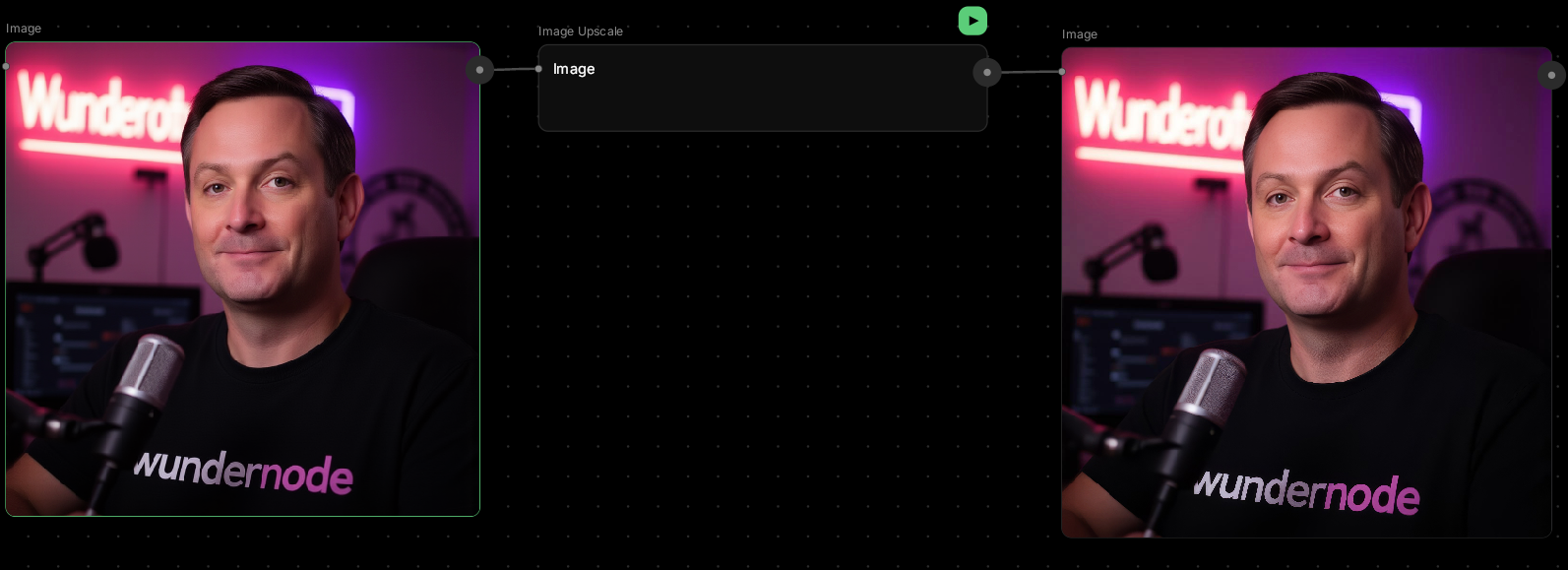
Image Upscale
Make your images bigger without making them blurry.This node increases resolution intelligently, adding detail instead of just stretching pixels. Perfect for preparing work for print, social media, or client presentations.
🪄 When to Use It
Use Image Upscale when you need higher resolution for final output. It works great for:- Print preparation — posters, canvases, merchandise
- High-res social posts — Instagram, portfolio sites
- Client deliverables — professional presentations
- Detail recovery — bringing back sharpness in compressed images
Average time: 8–15 seconds depending on size
Cost: Medium
🎚️ Controls and Parameters
Image (Required)
The image you want to enhance. Works best with AI-generated images or clean photos.Upscale Factor (Number)
How much to increase the size — typically 2x or 4x.- 2x — doubles width and height (fast, good for web)
- 4x — quadruples dimensions (slower, best for print)
Model (Select)
Different AI models optimized for various content types:- Standard V2 — balanced quality for most images
- High Fidelity V2 — preserves fine details, best for portraits
- Low Resolution V2 — for heavily compressed or low-res sources
- CGI — optimized for 3D renders and digital art
- Text Refine — when your image contains readable text
- Recovery — for damaged or heavily artifacted images
🎨 Available Models
Topaz (Default)
Industry-leading upscaling technology with multiple specialized models:- Standard V2 — balanced quality for most images
- High Fidelity V2 — preserves fine details, best for portraits
- Low Resolution V2 — for heavily compressed or low-res sources
- CGI — optimized for 3D renders and digital art
- Text Refine — when your image contains readable text
- Recovery — for damaged or heavily artifacted images
- Redefine — advanced enhancement for challenging images
- Recovery V2 — latest recovery algorithm
Face Enhancement (Toggle)
Automatically detects and refines facial details.Face Enhancement Strength (0–1)
How much to improve face details. Higher values add more definition. 💡 Tip: Keep around 0.8 for natural-looking portraits. Lower if faces start looking over-sharpened.Subject Detection (Select)
Focus enhancement on specific parts:- Foreground — sharpen the main subject, soften background
- Background — enhance environment details
- All — apply evenly across the entire image
🎨 What to Expect
Upscaling adds detail — but it can’t invent information that wasn’t there.If your source image is very blurry or low-resolution, results may still look soft. Best quality comes from upscaling clean, well-composed images. Processing time increases with:
- Higher upscale factors (4x takes longer than 2x)
- Face enhancement enabled
- Larger source images
💬 Quick Tips
- Upscale as the last step in your workflow, after all edits
- For portraits, enable face enhancement for better detail
- 2x is usually enough for web and social media
- 4x is for print or when you need maximum detail
- If results look over-sharpened, try a different model or lower enhancement strength