

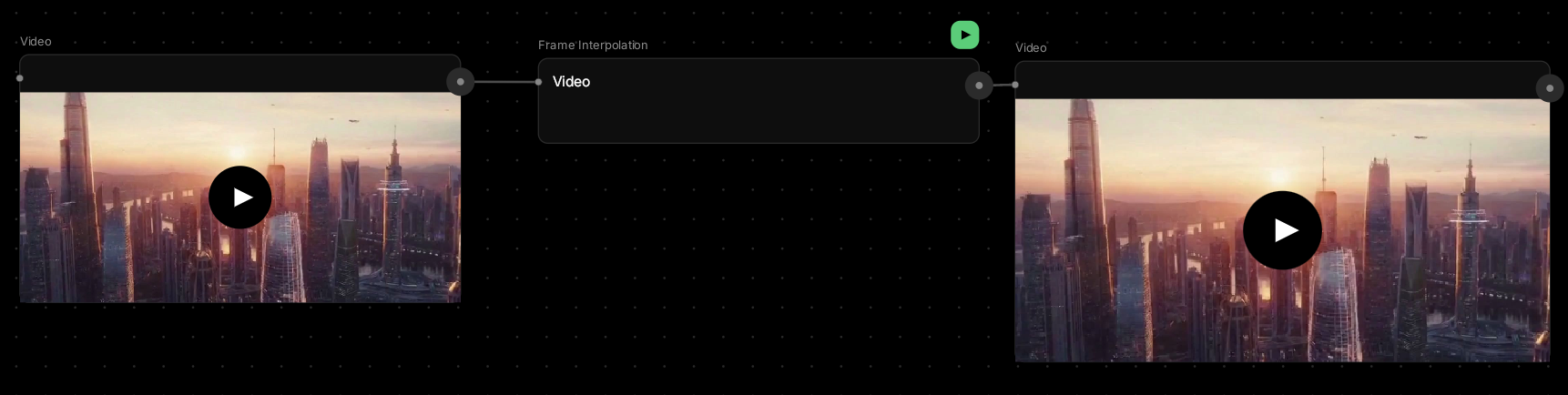
Frame Interpolation
Make motion buttery smooth.This node fills in the gaps between frames, creating fluid movement from choppy footage. Perfect for making AI-generated videos look more cinematic or smoothing out low-FPS recordings.
🪄 When to Use It
Use Frame Interpolation when your video feels stuttery or choppy. It works great for:- Smoothing AI videos — most AI generators output at 24fps or lower
- Slow motion — add frames to stretch time smoothly
- Gaming captures — make 30fps gameplay look like 60fps
- Stop motion — blend frames for smoother animation
Average time: 60–120 seconds depending on length and FPS
Cost: Medium-High
🎚️ Controls and Parameters
Video (Video, Required)
The footage you want to smooth out. Works with any video format.Frame Rate Multiplier (Number)
How many new frames to add between existing ones:- 2x — doubles frame rate (24fps → 48fps, 30fps → 60fps)
- 4x — quadruples frame rate (for extreme slow-motion)
🎨 Available Models
VFI (Default)
Video Frame Interpolation engine designed for smooth motion. Intelligently analyzes movement between frames to generate natural in-between frames. Features:- Flexible frame rate multipliers (2x, 4x, or higher)
- Optimized for AI-generated video smoothing
- Works with any video format
🎨 What to Expect
Frame interpolation analyzes motion between frames and generates smooth in-between frames. Works best with:- Consistent motion — objects moving in predictable paths
- Good source quality — clean, sharp footage
- Simple scenes — fewer objects moving at once
- Fast, erratic movement — quick cuts or camera shakes
- Occlusion — objects appearing/disappearing between frames
- Motion blur — already blurry footage gets worse
- Scene cuts — interpolation doesn’t know when scenes change
💬 Quick Tips
- Use Frame Interpolation as one of the last steps in your workflow
- 2x multiplier is perfect for making 24-30fps feel like smooth 60fps
- Works great on AI-generated videos which often feel choppy
- Don’t interpolate footage that’s already 60fps — it won’t improve quality
- If you see ghosting or artifacts, your source motion might be too fast or complex
- Best used on videos with smooth, continuous motion