
Audio Input
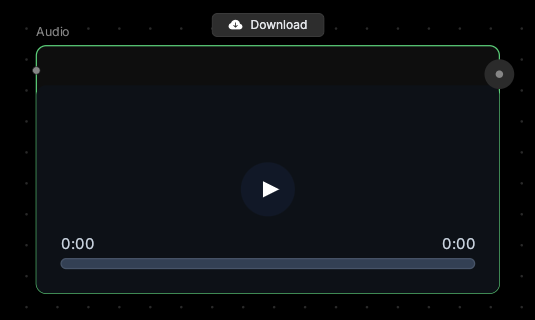
Your sound, your way.This node lets you upload audio files or record directly in your browser. Use it for voice samples, dialogue replacement, background music, or any audio you want to incorporate into your workflow.
🪄 When to Use It
Use Audio Input when you need to bring your own audio into the canvas. It works great for:- Voice cloning samples — record or upload voice samples for Voice Generator
- Dialogue replacement — provide new audio for Lip Sync or Talking Portrait
- Background music — add soundtracks to video animations
- Narration — use pre-recorded voiceovers in your projects
Cost: Free (no processing)
🎚️ How It Works
Three ways to add audio:- Click to upload — Select the node and browse for an audio file
- Drag and drop — Drag any audio file directly onto the canvas, and an Audio Input node is automatically created
- Record directly — Use the built-in recorder to capture audio from your microphone
🎨 What to Expect
The Audio Input node stores your audio and makes it available to other nodes. Common uses:- Record voice sample → Voice Generator → clone your voice for narration
- Upload dialogue → Lip Sync → sync video to new audio
- Upload narration → Talking Portrait → animate a portrait with your voice
- Upload music → Image to Video (background audio) → add soundtrack to animation
💬 Quick Tips
- Drag and drop audio files directly onto the canvas for instant Audio Input nodes
- Record clean audio — use a quiet room and speak clearly for best voice cloning results
- For voice samples: 10-15 seconds of clear speech is ideal
- Supported formats: MP3, WAV, M4A, OGG
- Recording tip: Get close to the mic and avoid background noise
- You can connect one Audio Input to multiple nodes to reuse the same audio