Text to Image
Type what you see in your mind, and watch it become a picture.This is your creative starting point — whether you’re sketching ideas, designing characters, or visualizing a scene that doesn’t exist yet.
🪄 When to Use It
Use Text to Image when you’re starting from scratch — no reference photos, just an idea. It works great for:- Concept art and mood boards
- Character designs and portraits
- Product mockups before prototyping
- Environments and landscapes for storytelling
Average time: 3–8 seconds per image
Cost: Low
🎚️ Controls and Parameters
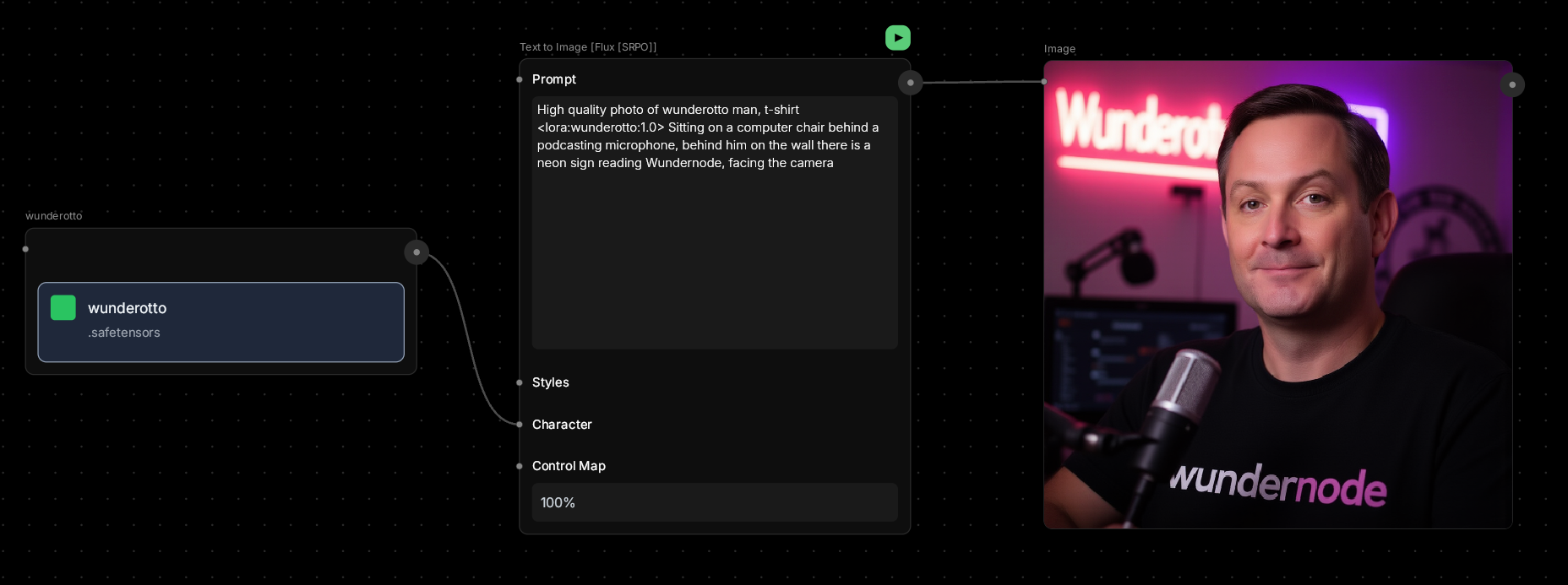
Prompt (Text)
What you want to create. Be specific about mood, style, lighting, and composition. 💡 Tip: Try “A cozy coffee shop interior, warm lighting, vintage furniture, cinematic” instead of just “coffee shop.”Styles (Optional)
Import custom LoRA files trained on specific visual styles (watercolor, anime, cinematic, etc.) to guide the aesthetic of your generation. ⚠️ Note: Styles only work with Flux models (dev, SRPO, Krea, Chroma) and SDXL. Not compatible with Nano Banana or GPT Image. 💡 Tip: Train custom style LoRAs on platforms like Civitai, Replicate, or Fal.ai, then import the.safetensors file. Built-in training coming soon!
How to use in prompt:
Character (Optional)
Import custom LoRA files trained on specific characters or faces to maintain consistent appearance across multiple generations. ⚠️ Note: Characters only work with Flux models (dev, SRPO, Krea, Chroma) and SDXL. Not compatible with Nano Banana or GPT Image. 💡 Tip: Train character LoRAs using 10-20 images of your character on Civitai, Replicate, or Fal.ai. Import the.safetensors file to use in Wundernode.
How to use in prompt:
1.0— full strength (recommended starting point)0.5— subtle influence, blended with base model1.5— stronger effect (may override prompt details)
Control Maps (Optional, Advanced)
Upload reference images to guide composition, depth, or style:- Control 1, 2, 3: Add depth maps, edge guides, or pose references
- Strength (0–1): How closely to follow the control image
🎨 Available Models
Different AI models offer different styles and capabilities. Choose the one that fits your needs:Nano Banana (Default)
Fast, general-purpose model. Great for quick iterations and testing ideas.GPT Image
Optimized for realistic images with flexible aspect ratios and transparent backgrounds.Flux [dev]
High-quality model with excellent prompt following. Supports control maps for advanced composition control.SDXL
Multiple sub-models available (Juggernaut, Night Vision, Epic Realism, etc.) — each with distinct visual styles.Flux [SRPO]
Enhanced Flux variant with improved realism and detail preservation.Flux [Krea]
Creative variant of Flux optimized for artistic and stylized outputs.Chroma [V50]
Advanced color and lighting control for professional-grade results.Seedream V4
Latest model with support for ultra-high resolution (up to 4K) and various aspect ratios. 💡 Tip: Start with Nano Banana for speed, switch to Flux or Seedream for final high-quality renders.🎨 What to Expect
Your first result might not be perfect — and that’s normal.Think of this node as a sketch tool. You can:
- Regenerate with a different seed
- Adjust your prompt for clarity
- Pass the result to other nodes for refinement
💬 Quick Tips
- Be descriptive but not overwhelming — 1-2 sentences work best
- Mention lighting and composition early in your prompt
- Try different styles to find what matches your vision
- Save your favorite prompts for reuse